JD Shadow App Login Problems: Can't Sign In or Verification Errors on Mobile
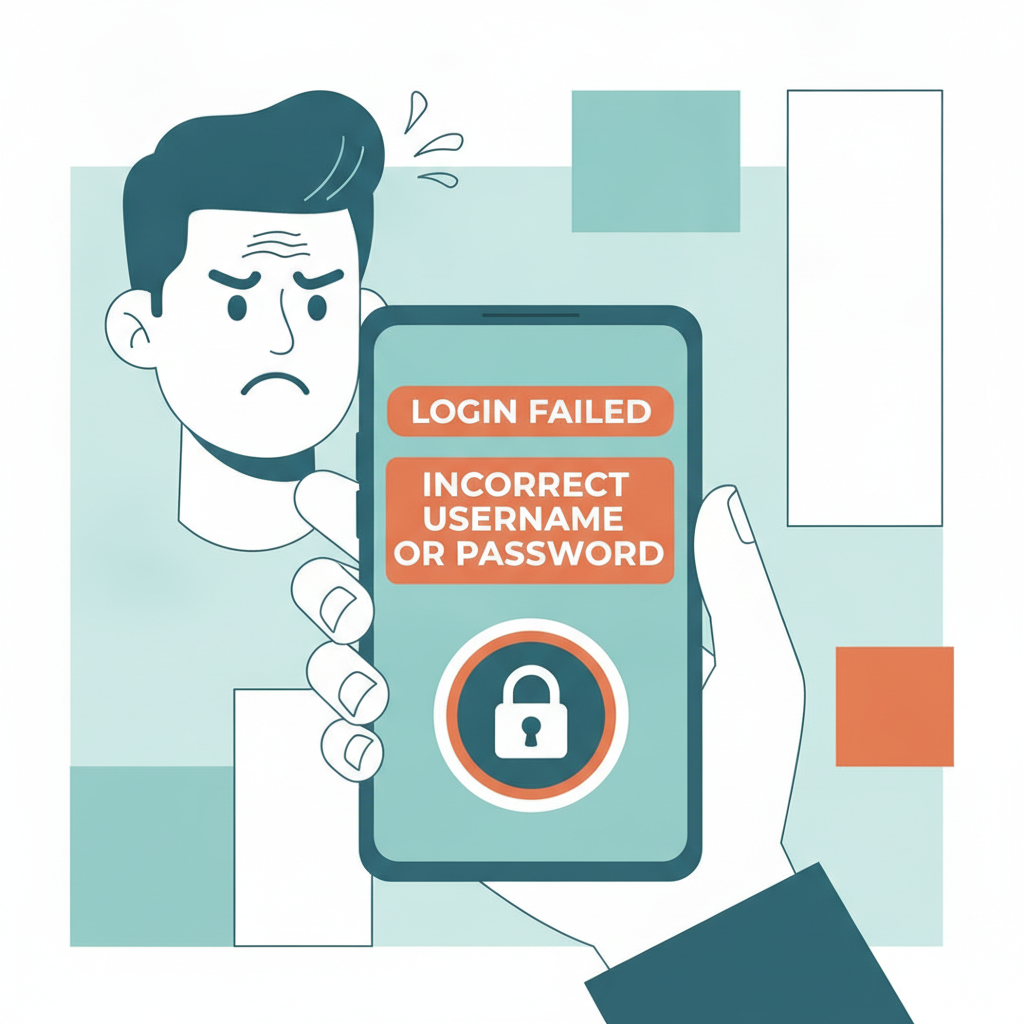
JD Shadow App Login Problems: Can't Sign In or Verification Errors on Mobile
Login errors can lock you out of your JD Shadow account just when you want to place a bet or check your balance. This guide covers the most common JD Shadow app login problems on Android and iOS, what the error messages mean, and step-by-step fixes you can try on your phone.
This content is for players aged 21 and over only. If you think you have a gambling problem, contact the National Council on Problem Gambling or set deposit limits in your account settings.
Common JD Shadow App Login Errors and What They Mean
JD Shadow displays a handful of error messages when login fails. Here's what each one typically indicates:
"Incorrect username or password" – The mobile number, email, or username you entered doesn't match what JD Shadow has on file, or the password is wrong. This error also appears if you've switched accounts and your phone's autofill is using old credentials.
"Account locked" or "Account suspended" – JD Shadow has temporarily or permanently disabled login. Common reasons include multiple failed login attempts within a short window, incomplete verification, or a flag from their compliance team. You'll usually need to contact support to unlock it.
"OTP expired" or "Invalid verification code" – The one-time PIN sent to your mobile number has timed out (most expire in three to five minutes) or you typed it incorrectly. JD Shadow sends OTPs via SMS for two-factor login or when you reset your password.
"Session expired – please log in again" – You were logged in earlier but the app timed out. This isn't an error; just tap the login button and re-enter your credentials.
"Unable to connect" or "Network error" – The app can't reach JD Shadow's servers. Check your mobile data or Wi-Fi connection, and confirm the platform isn't under maintenance by visiting their official social-media channels.
Fixing 'Incorrect Username or Password' and Account Locked Issues
Step 1: Double-Check Your Credentials
Tap the password field's eye icon to reveal what you've typed and confirm there are no extra spaces or typos. If you registered with a mobile number, make sure you're entering it in the same format JD Shadow accepted—some players use 09171234567 while others used +639171234567.
Clear your phone's autofill cache if the app keeps inserting an old password. On Android, go to Settings → Google → Autofill → Passwords, find JD Shadow, and delete saved entries. On iOS, open Settings → Passwords, search for JD Shadow, and remove outdated logins.
Step 2: Request a Password Reset
If you're certain the username is correct but the password fails, tap "Forgot Password" on the login screen. JD Shadow will ask for your registered mobile number or email. Enter it, then tap "Send Code" or "Send Reset Link."
You'll receive either an SMS with a six-digit OTP or an email with a reset link. Tap the link or enter the code in the app, then create a new password. Use at least eight characters with a mix of letters, numbers, and symbols—avoid common phrases like password123.
Step 3: Unlock a Locked or Suspended Account
Three to five wrong password attempts in quick succession will trigger an automatic lockout for 15 to 30 minutes. Wait out the timer, then try again.
If the error says "Account suspended," you'll need to contact JD Shadow support through live chat in the app (look for a floating chat icon on the home screen) or send an email to their help desk. Have your registered mobile number and any recent transaction IDs ready. The support team will verify your identity and explain the reason for the suspension—common causes include failed ID verification, duplicate accounts, or chargebacks on GCash or Maya deposits.
Troubleshooting OTP or Verification Code Not Received
JD Shadow sends one-time PINs by SMS when you log in with two-factor authentication enabled or when you reset your password. If the code doesn't arrive within two minutes, try these fixes:
- Check your phone's SMS inbox and spam folder. Some Android devices route automated messages to a "promotions" or "junk" tab.
- Confirm your registered mobile number is correct. Log in on a desktop browser or ask support to verify the number on file. If you've changed SIM cards or ported your number to a new carrier, the old number won't receive codes.
- Request a new OTP. Most apps let you tap "Resend Code" after 60 seconds. Wait the full cooldown before requesting again—spamming the button can delay delivery.
- Switch from SMS to email OTP. Some players report faster delivery via email. If JD Shadow offers an email-code option on the verification screen, select it and check your inbox (and spam folder) within five minutes.
- Restart your phone. A quick reboot clears stuck SMS queues and refreshes your connection to the mobile network.
- Check for carrier issues. If you're on Globe, Smart, or DITO, search their official pages or Down Detector to see if SMS delays are affecting other users. Network congestion during peak hours (lunch and evening) can hold up OTP delivery by several minutes.
If none of these steps work, contact JD Shadow support via live chat. They can manually verify your identity using your registered email, recent deposit screenshot from GCash or Maya, or a photo of your government ID.
Steps to Reset Password or Recover Account Access on Mobile
Full Password-Reset Walkthrough
- Open the JD Shadow app on your Android or iOS device.
- Tap "Login" on the home screen.
- Below the password field, tap "Forgot Password" or "Reset Password."
- Enter your registered mobile number (format:
09171234567) or email address, then tap "Send Code." - Check your SMS inbox or email for a six-digit OTP. The code usually arrives in 30 to 90 seconds.
- Type the OTP into the app's verification screen. If the code expires, tap "Resend" after 60 seconds.
- Create a new password. Avoid reusing your old password or passwords from other sites.
- Tap "Confirm" or "Set Password." The app will log you in automatically or redirect you to the login screen.
Recovering Access Without a Registered Mobile Number or Email
If you no longer have access to the phone number or email you used to register, you'll need to prove your identity to JD Shadow support:
- Prepare a photo of your government-issued ID (the same one you used for account verification).
- Screenshot your most recent GCash, Maya, or bank-transfer deposit confirmation showing your name and the transaction ID.
- Note your JD Shadow username and approximate account balance.
Send these documents through the app's live chat or email them to JD Shadow's help desk. Explain that you've lost access to your registered contact details. The support team will review your case and may ask follow-up questions to confirm you own the account. Recovery can take one to three business days.
What to Do If You Forgot Your Username
JD Shadow usernames are usually auto-generated or based on your mobile number. If you can't remember it:
- Tap "Forgot Username" on the login screen (if available).
- Enter your registered mobile number or email. JD Shadow will send your username via SMS or email.
- If there's no "Forgot Username" link, contact support via live chat. Provide your registered phone number and full name; they'll look up your account and confirm the username.
Tips to Prevent Future Login Problems
- Save your credentials in a secure password manager like Google Password Manager, Apple Keychain, or Bitwarden. This prevents typos and lost passwords.
- Keep your registered mobile number and email active. If you plan to change SIM cards or email providers, update your JD Shadow account details first through the app's profile settings.
- Enable two-factor authentication if JD Shadow offers it. OTP-based login adds a layer of security and can help you recover your account if someone guesses your password.
- Clear the app cache monthly. On Android, go to Settings → Apps → JD Shadow → Storage → Clear Cache. On iOS, offload and reinstall the app. Cached data can cause login loops or outdated error messages.
- Update the JD Shadow app regularly. Check Google Play or the official APK source for Android, or the App Store for iOS. Older app versions sometimes have bugs that prevent login.
Responsible Gambling Message and 21+ Age Requirement
JD Shadow is intended for players aged 21 and over in the Philippines. Gambling should be a form of entertainment, not a way to make money or solve financial problems.
If betting on PBA, NBA, volleyball, or playing slots and live dealer games is affecting your finances, relationships, or mental health, please seek help. You can contact the National Council on Problem Gambling or use JD Shadow's self-exclusion and deposit-limit tools in your account settings.
Set a budget before you log in, never chase losses, and take regular breaks. JD Shadow's platform includes session timers and reality-check reminders—use them to stay in control.
Need help with deposits, withdrawals, or app installation? Check the other guides on this site for step-by-step walkthroughs on GCash and Maya cashouts, InstaPay and PESONet bank transfers, Android APK downloads, and iOS setup. For questions about bonuses, promo codes, or wagering requirements, visit our sibling sites that specialize in JD Shadow offers and promotions.